Disabling Windows Security Features

This is a guide for ^

About Windows Security Features

Windows includes several security features like Exploit Protection and Control Flow Guard that help protect against malware and exploits. However, these features can sometimes interfere with certain applications, requiring them to be disabled.

Disabling Exploit Protection

Method 1: Through Windows Security
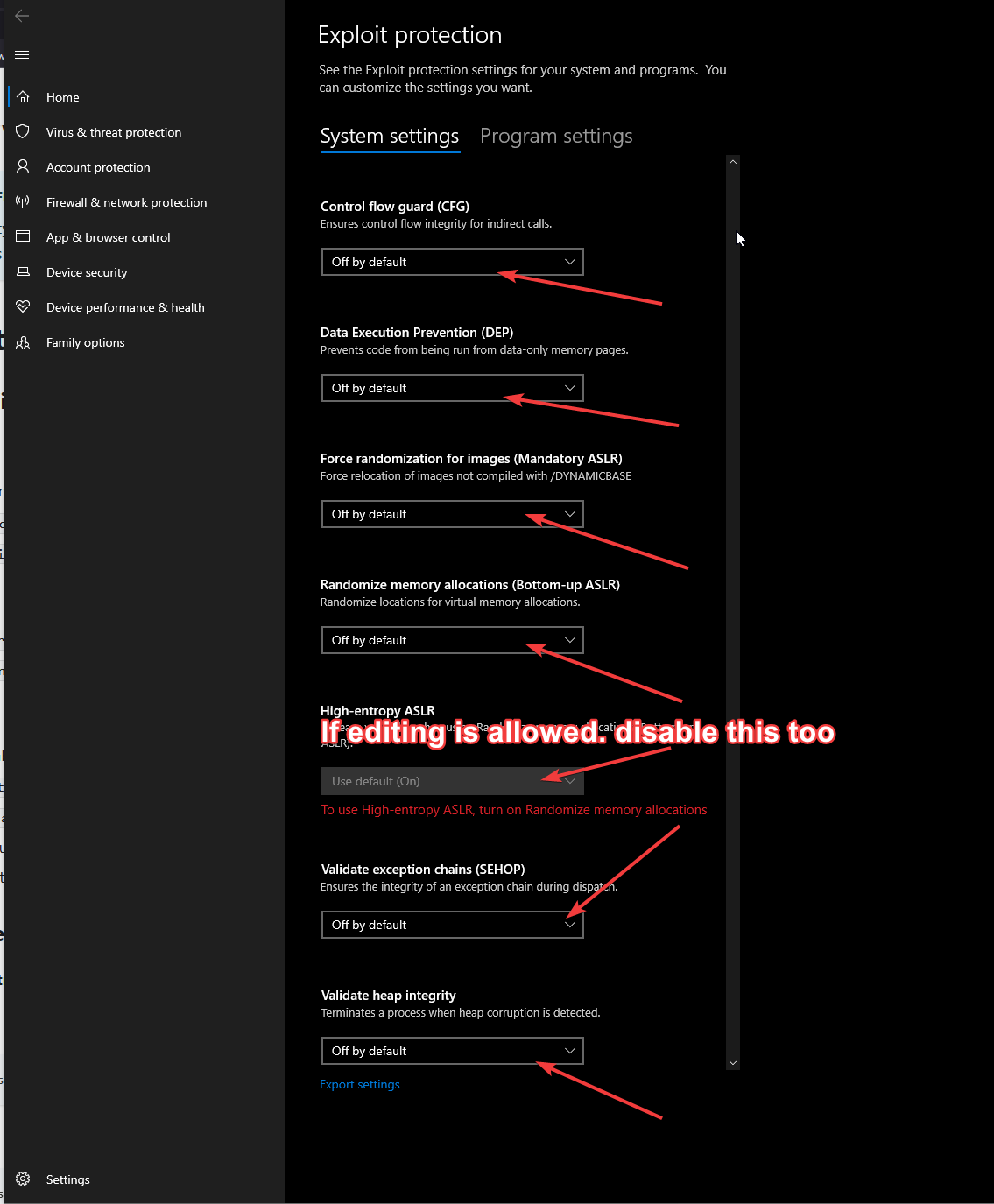
  1. Open Windows Security:

    • Press Windows + I to open Settings

    • Navigate to Privacy & Security > Windows Security

    • Click Open Windows Security

  2. Access Exploit Protection:

    • Click App & Browser control

    • Select Exploit protection settings

Exploit protection settings
  1. Modify Program Settings:

    • Click Program settings tab

    • Click Add program to customize

    • Choose Add by program name

    • Enter your program's executable name

    • Disable all protections for the program

Method 2: Using PowerShell (System-Wide)

  1. Open PowerShell as Administrator

  2. Export Current Settings:

  3. Disable Exploit Protection:

Method 3: Registry Editor

  1. Open Registry Editor:

  2. Navigate to:

  3. Modify Values:

    • Create DWORD MoveImages = 0

    • Set EnableCfg = 0

Disabling Control Flow Guard (CFG)

Method 1: Visual Studio Project

If you're a developer, disable CFG in your project:

  1. Open project properties

  2. Navigate to C/C++ > Code Generation

  3. Set Control Flow Guard to No

Method 2: System-Wide Disable

  1. Registry Modification:

  2. Verify with PowerShell:

Additional Security Features

Data Execution Prevention (DEP)

  1. Command Line Disable:

  2. Through System Properties:

    • Open System Properties

    • Advanced tab > Performance > Settings

    • Data Execution Prevention

    • Choose "Turn on DEP for essential Windows programs only"

Address Space Layout Randomization (ASLR)

  1. Registry Disable:

  2. PowerShell Command:

SEHOP (Structured Exception Handler Overwrite Protection)

Creating Exclusions for Specific Programs

  1. Export Default Settings:

  2. Create Program-Specific Rules:

PowerShell Script for Complete Disable

Important Notes

  1. Create a system restore point before making changes

  2. Some changes require a system restart

  3. Windows Updates might re-enable these features

  4. Document all changes for future reference

Verifying Changes

Check CFG Status

Check DEP Status

Check ASLR Status

Restoring Security Features

  1. Using Backup:

  2. Reset to Windows Defaults:

  3. Enable through Registry:

For additional support or specific program configurations, contact our support team.

Last updated

Was this helpful?