Virtualization Errors
This guide covers common virtualization-related errors and their solutions.
VMX/SVM Not Supported Error
Error Message
VMX/SVM is not supported Video Tutorial soon Solution Steps
Disable Windows Virtualization Features
Open Control Panel
Navigate to "Programs and Functions"
Click "Turn Windows features on or off"
Disable these features:
Virtual Machine Platform
Hyper-V
Disable Hypervisor (if Step 1 doesn't work)
Open Command Prompt as Administrator
Run the following command:
bcdedit /set hypervisorlaunchtype offRestart your computer
Windows 11 Specific Solution ( OR UNIVERSAL BUT BE CAREFUL CAN DESTORY PC)
If the above methods don't work, try this:
Open PowerShell as Administrator
Run these commands:
takeown /F "C:\Windows\System32\hvix64.exe" icacls "C:\Windows\System32\hvix64.exe" /grant *$(([System.Security.Principal.WindowsIdentity]::GetCurrent()).User.Value):F takeown /F "C:\Windows\System32\hvax64.exe" icacls "C:\Windows\System32\hvax64.exe" /grant *$(([System.Security.Principal.WindowsIdentity]::GetCurrent()).User.Value):F del "C:\Windows\System32\hvix64.exe" del "C:\Windows\System32\hvax64.exe"
caution
The Windows 11 solution involves deleting system files. Make sure you have a backup before proceeding with this step.
How to Enable/Disable Hyper-V
Steps:
Open Windows Features:
Press Windows Key + R to open the Run dialog.
Type
optionalfeaturesand press Enter (or click OK).This opens the "Turn Windows features on or off" window.
Enable Hyper-V:
Scroll down and locate Hyper-V in the list.
Check the box next to it to enable all Hyper-V components (including Hyper-V Management Tools and Hyper-V Platform).
Click OK to apply the changes.
Restart Your Computer:
Windows will prompt you to restart.
Save your work and click Restart now to complete the installation.
After the restart, Hyper-V will be fully enabled and ready to use.
BIOS Virtualization Error
Error Message
Please enable Intel VT-X/AMD-V in the BIOS
Solution Steps
Enter BIOS
Restart your computer
During startup, press the BIOS key (usually Del, F2, F10, or F12)
Key varies by manufacturer:
Dell: F2 or F12
HP: F10
Lenovo: F1 or F2
ASUS: Del or F2
Acer: F2 or Delete
Enable Virtualization
Look for one of these options (name varies by manufacturer):
"Intel Virtualization Technology"
"Intel VT-X"
"AMD-V"
"SVM Mode"
"Virtualization Technology"
Enable the option
Save changes and exit BIOS
Restart your computer
tip
If you can't find the virtualization option, check under:
Advanced Settings
CPU Configuration
System Configuration
Security
Verifying Virtualization Status
You can verify if virtualization is properly enabled:
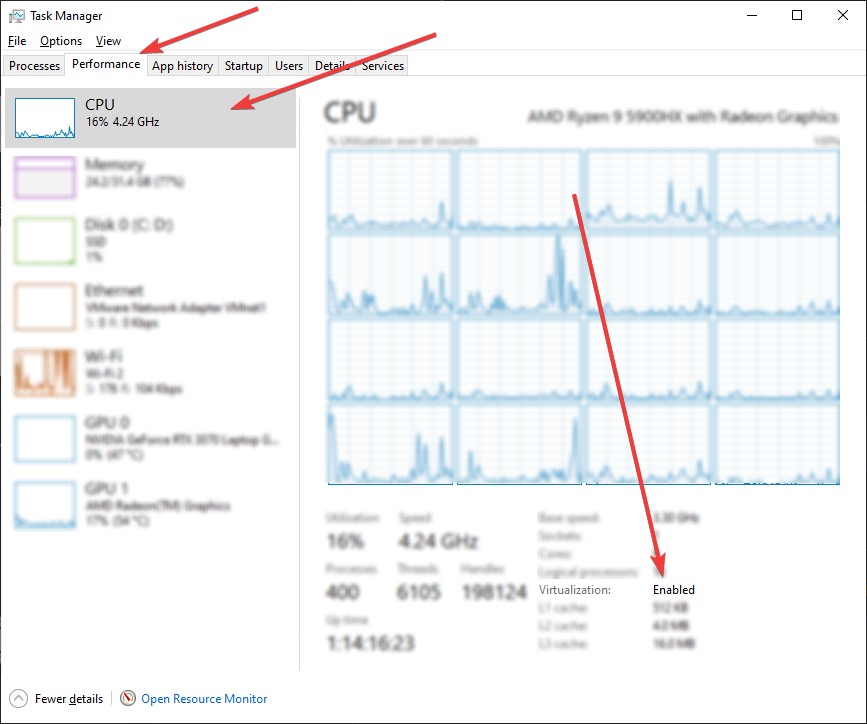
Using Task Manager
Press Ctrl + Shift + Esc
Go to Performance tab
Look for "Virtualization" at the bottom

Using System Information
Press Win + R
Type
msinfo32and press EnterUnder System Summary, look for:
"Hyper-V Requirements"
"Virtualization Enabled In Firmware"
note
Both methods should show virtualization as enabled after applying the solutions above.
Error: "Please make sure PIN is not set and manually disable Hyper-V"
Disable PIN and Password
Remove Windows Hello PIN.
Disable any Windows Hello sign-in requirements.
Disable Virtualization in BIOS
Restart your computer and enter the BIOS/UEFI menu.
Locate the virtualization setting (Intel VT-x / AMD-V).
Disable it and save changes.
Delete Hyper-V Related Files Open Command Prompt as Administrator and run:
Enable Virtualization
After completing the previous steps, return to BIOS/UEFI.
Re-enable Intel VT-x or AMD-V virtualization.
Save and reboot.
Common Issues
Virtualization Conflicts: Some antivirus software may conflict with virtualization. Temporarily disable your antivirus if issues persist.
Windows Updates: Recent Windows updates might re-enable Hyper-V. Repeat the solution steps if necessary.
BIOS Updates: In rare cases, updating your BIOS might reset virtualization settings.
For additional support, consult your motherboard or computer manufacturer's documentation.
Last updated
Was this helpful?